What you'll get
- One recurring Excel task you picked and wrote down step by step.
- A custom Copilot skill that runs that task when you call it by name.
- A simple way to check the result before you trust it.
Pick one task worth teaching
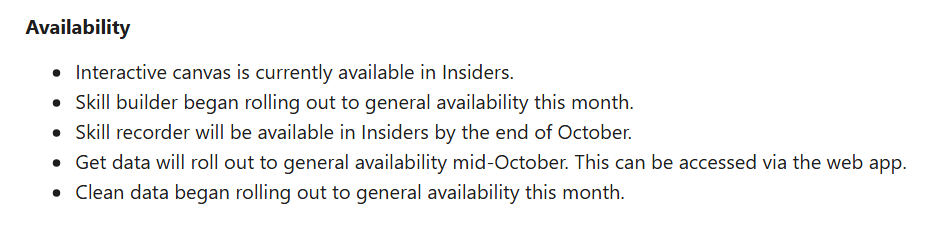
A skill is a saved set of instructions that Copilot can run again. The best first skill is a boring task you already know by heart.
- 1. List the Excel tasks you did last month more than once.
- 2. Circle one that repeats at least once a month and takes more than an hour.
- 3. Write its steps in plain words, the way you'd explain them to a new team member: where the data comes from, what you fix, and what the finished sheet looks like.
Check it worked: It worked if you can describe the whole task in 5 to 10 short lines.
NoteStart with a task whose data is already in an Excel file. If it needs your email, your accounting system or the bank on the way, save it for later.
Check that Copilot is in your Excel
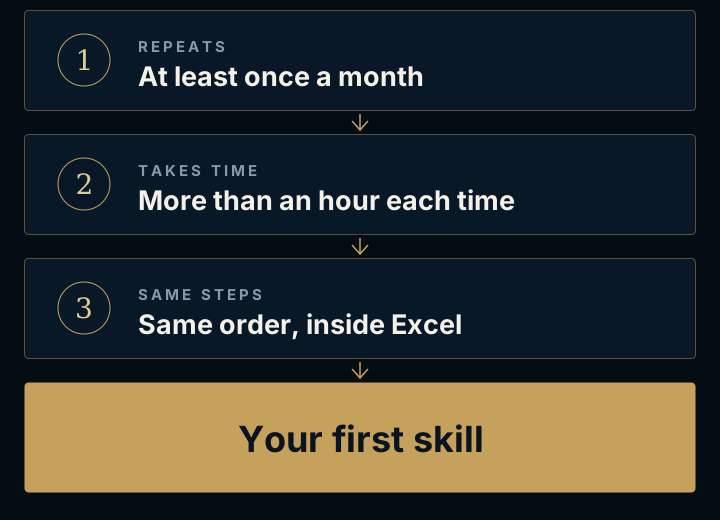
Microsoft lists four kinds of plans that include Copilot in Excel (picture). Check yours in your Microsoft 365 account settings.
- 1. Skills work only when Office's display language is English. On Windows: File → Options → Language, pick English under Office display Language, select Set as Preferred and reopen Excel. A Mac follows the computer's language; the web follows your Microsoft account's.
- 2. Open Excel on Windows, Mac or the web and select the Copilot icon in the lower-right corner.
- 3. In the Copilot pane, open the Add menu (the +) and select Choose plugins and skills.
Check it worked: It worked if skill-builder shows up in that list.
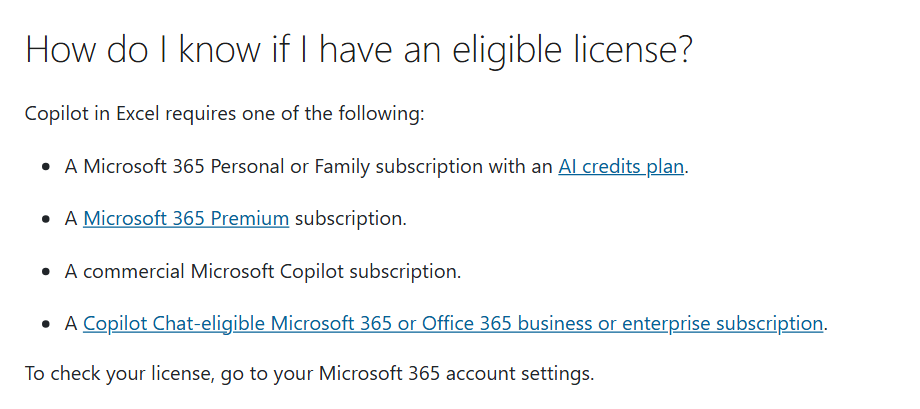
NoteNo skill-builder? Microsoft says it is still rolling out. On a work account, ask your IT admin, or check again in a few days.
Teach it with skill builder
skill-builder turns the task you describe into a skill. You see a preview first, and then Copilot saves it to your OneDrive.
- 1. Open a copy of last month's file.
- 2. Paste the box below into Copilot and fill in the brackets with your steps from step 1.
- 3. Check the preview, ask for fixes, then approve it.
- 4. Next time, type @ and the skill's name to run it.
Check it worked: It worked if your new skill appears in the Choose plugins and skills list.
NoteAnother way: do the task once with Copilot, then type "Save what we just did to a new skill." Skill recorder, which learns by watching you, reaches Insiders by the end of October.
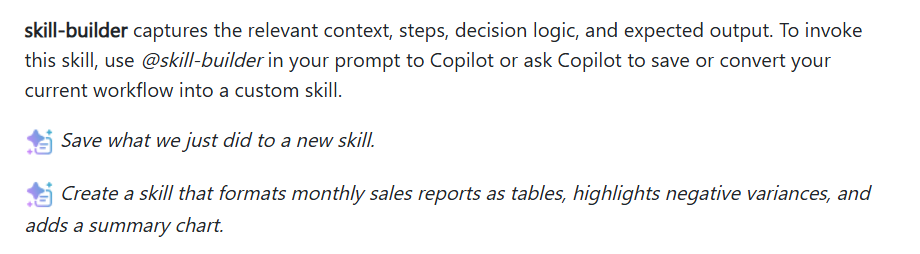
@skill-builder Create a skill for my monthly [task name].
Input: the sheet [sheet name], with the columns [column names].
Steps:
1. [first step]
2. [second step]
3. [third step]
Output: a table on a new sheet called [name], sorted by [column], with totals at the bottom.
Flag any row where [your rule].
Never delete or overwrite the original data.Get and clean the data first
On the first run, make sure the data going in is right. Copilot can fetch it and check it for you.
- 1. Data not in the workbook yet? In Excel for the web, describe it to Copilot: what you need, where it comes from and how it should look. Microsoft calls this get data.
- 2. Paste the text from the box below to run @clean-data. It looks for extra spaces, mixed text and number formats, inconsistent dates, duplicates and values stored as the wrong type.
- 3. Copilot explains what it found. Choose which fixes to apply.
Check it worked: It worked if Copilot shows you a list of issues and changes only the ones you picked.
NoteMicrosoft says get data starts rolling out to everyone in mid-October in Excel for the web, and clean-data is still rolling out. Not there yet? Ask Copilot to bring the data from another Excel file on your OneDrive, SharePoint or computer.
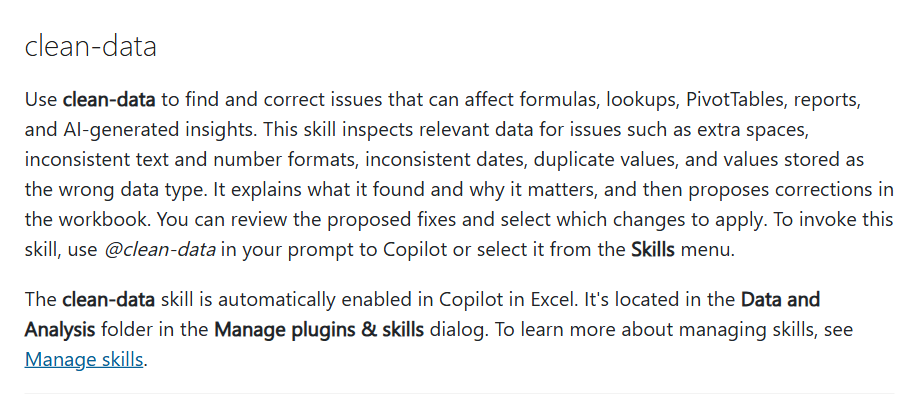
@clean-data Check the table on the sheet [sheet name] for duplicates, the same value written in different ways (like USA, US and United States), dates stored as text and numbers stored as text. Explain what you found before you change anything.Check the first runs before trusting it
Check a new skill's work the first few times, the way you'd check a new hire's.
- 1. Run it on a copy of the file, next to last month's version you made by hand.
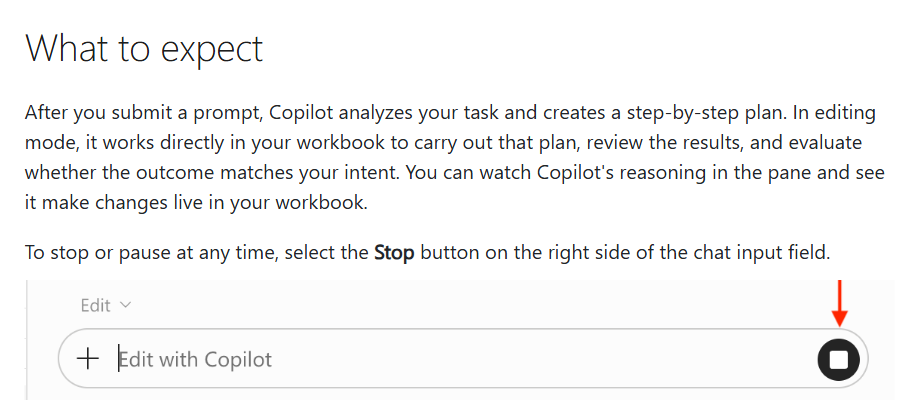
- 2. Watch the Copilot pane: it shows its plan and its changes live. Select Stop if it goes the wrong way.
- 3. Compare the totals. Something off? Tell Copilot what to fix and ask it to update the skill.
Check it worked: It worked if two runs in a row match the result you made by hand.
All of this happens inside Excel. A process that runs across several systems, from email through the accounting system to the bank, needs a wider automation.
NoteWant to approve the plan before anything changes? Switch Copilot to plan mode before you run the skill.