What you'll get
- A Grok Bot with a name and one clear job, working on its own cloud computer.
- A first finished task you can check, with nothing sent without your OK.
- A routine that repeats the job on a schedule, with approvals set your way.
Get a plan and the app
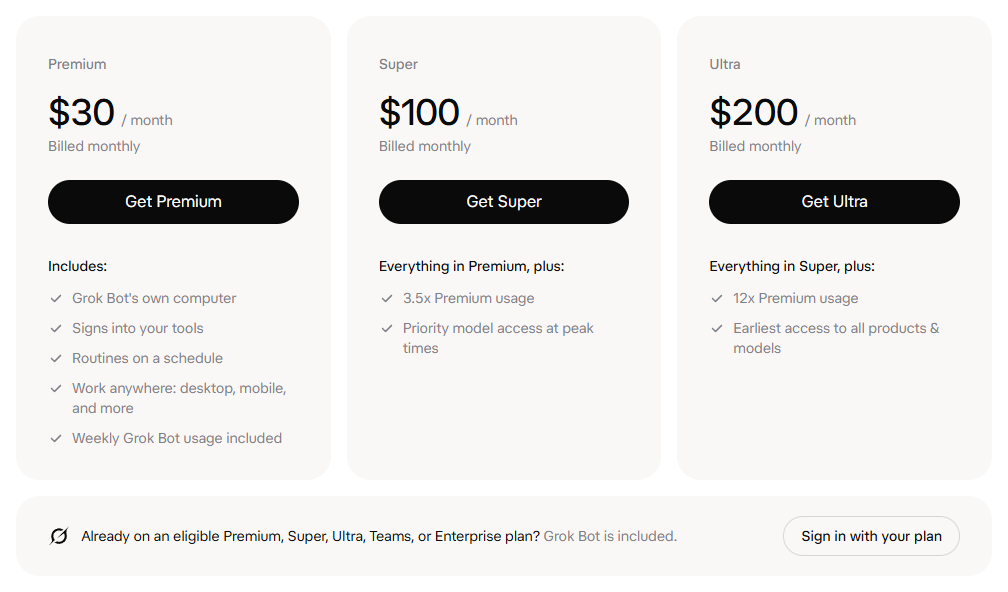
Grok Bot is in beta and comes with paid plans. On x.ai the cheapest individual plan that includes it is Premium, $30 a month, with weekly Bot usage included. Extra usage is billed by how much you use.
- 1. Open x.ai/pricing and check your plan. Already on Premium, Super, Ultra, Teams or Enterprise? Grok Bot is included.
- 2. Download the desktop app from x.ai/bot. The main button matches your computer. Other systems are under More downloads, and there are phone apps too.
- 3. Open the app, choose Sign in and finish signing in in the browser window that opens.
Check it worked: It worked if the app walks you through a short intro and ends on Meet a future teammate.
NotePlan names can look different in your account. Some older SuperGrok plans also unlock Grok Bot and ask you to link your Grok account in the app. There's no official country list yet, so check on your screen whether Grok Bot shows up for you.
Pick a ready Bot or make one
A Bot is an AI teammate with a name and one job. Start with one Bot and one job.
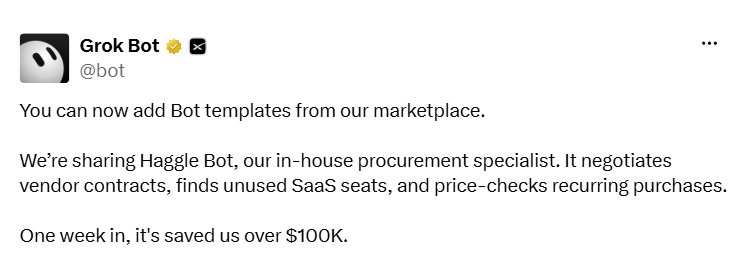
- 1. The quickest way: open Marketplace in the app's sidebar and choose Add on a template. Haggle Bot (cuts software spend) and Outbound Prospecting (finds leads and drafts first messages) come from the Grok Bot team.
- 2. Or choose Create your own on the Meet a future teammate screen. Give it a short name, one main job and a few lines on how it should work.
- 3. Later you can add more Bots with New, then Create new Bot.
Check it worked: It worked if the new Bot shows up in your sidebar with its own chat.
NoteA template copies only the Bot's setup. It doesn't bring the author's computer, logins or chat history.

Give it a small first job
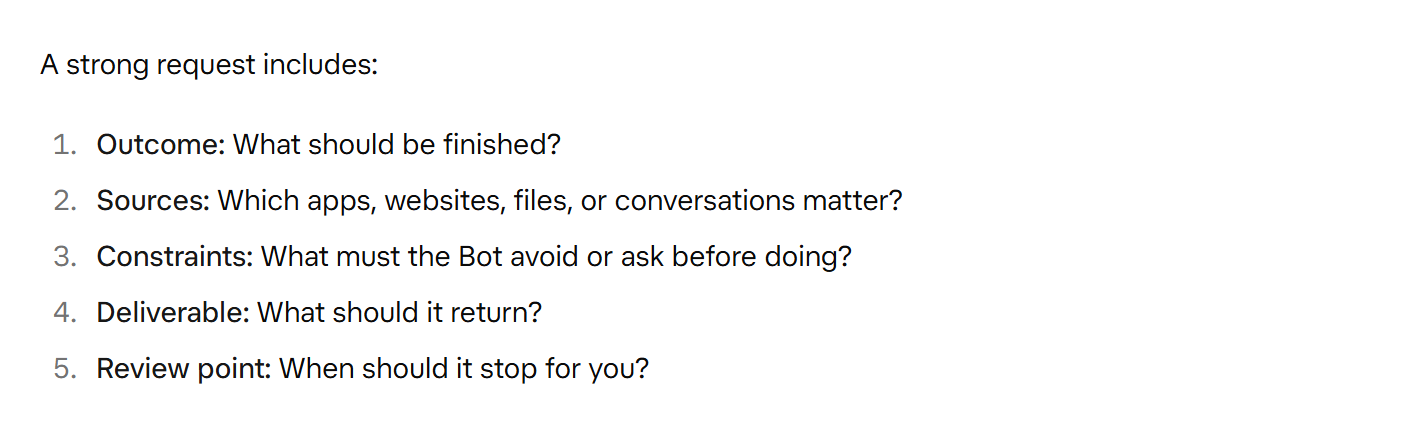
Write the job the way you'd brief a new hire. The official docs list five parts: the outcome, the sources, what to avoid, what to hand back, and when to stop for you.
- 1. Open the Bot's chat. Type, or use voice input.
- 2. Paste the sample job from the box below and change it to fit your company.
- 3. Let it work. You can close your laptop, because the Bot keeps going on its cloud computer.
Check it worked: It worked if you get back a list or a draft you can check, and the Bot hasn't contacted anyone.
NoteNothing connected yet? Attach a document and ask for a five-bullet summary first. It needs no login and takes about five minutes.
List our recurring software subscriptions from the invoices and billing emails I point you to. For each one, show the monthly cost and how many seats we pay for. Flag any seat nobody used in the last 30 days. Leave me a draft summary. Do not contact any vendor and do not cancel anything.Sign it in and set approvals
The Bot uses your tools the way you do, so sometimes it needs you to log in. Passwords never go in the chat.
- 1. When the Bot asks you to sign in somewhere, choose Take over. Type the password or code yourself, then choose I'm done.
- 2. For supported apps, you can also connect them from Connect apps in the sidebar.
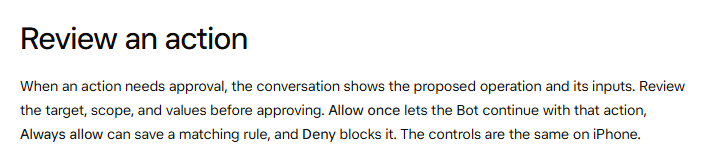
- 3. When the Bot wants to do something sensitive, a card shows the action. Choose Allow once, Always allow or Deny.
- 4. For a standing rule, open Settings → General → Auto-review and add an Ask first rule, such as "ask first before sending any external email".
Check it worked: It worked if the Bot stops and shows you a card before anything leaves your account.
NoteAuto Review is a second AI model that checks risky actions before they run. It helps, and it can still miss things. Keep sending, paying and deleting behind your own OK.
Show it once, then schedule it
Once a job works, turn it into a routine: a job the Bot runs by itself on a schedule.
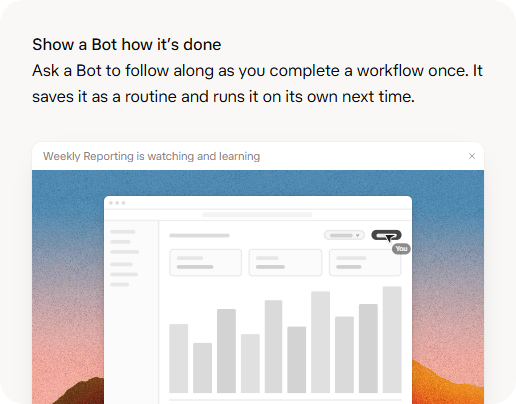
- 1. If you see Teach a task, choose it, do the job once in the Bot's browser and stop the recording. The Bot saves it as a skill, a reusable set of steps.
- 2. No Teach a task yet? Ask the Bot: "Save what we just did as a skill."
- 3. Then ask for a schedule, like the sample in the box below.
- 4. Choose Test run once before you leave it alone.
Check it worked: It worked if the Bot's routines (View conversation details, then Routines) show the job and its next run.
NoteA test run does real work. Use safe inputs and keep approvals on.
Every Monday at 9:00 AM, run the software spend skill. Post the summary in this chat. Do not contact vendors. If a source is missing, tell me instead of using old data.Its own email, and what stays yours
Since October a Bot can claim its own email address. It can use it to contact businesses for you, sign up for services or set up a meeting.
- 1. Ask your Bot to claim its inbox. On a team plan, an admin has to turn this on first.
- 2. Emails it sends from that address wait for you on a draft card. Read each one, then choose Send or Discard.
- 3. Keep these for yourself: passwords, two-factor codes, CAPTCHAs and payment confirmations. The Bot hands you the screen for them.
Check it worked: It worked if the Bot tells you its new address and its first email waits for you as a draft.
For a whole company, admins can add team-wide approval rules and shared Team Bots.
NoteAll your Bots share one cloud computer, with the same files and logins. Don't rely on separate Bots to keep things apart.
