What you'll get
- Your own dot in ChatGPT, connected to your calendar and email.
- Rules for what it does alone, what it asks about first, and what it hands back to you.
- A weekday brief with your meetings, the emails waiting on you and invoices that slipped.

Check that your plan includes dots
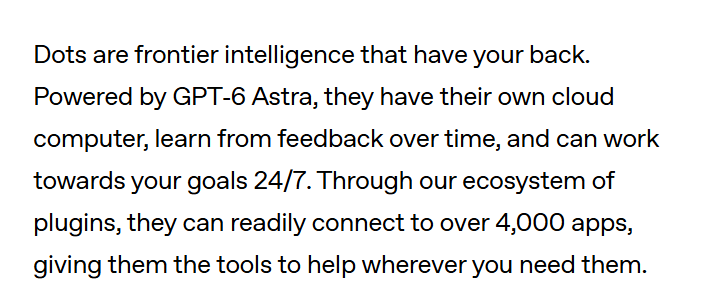
A dot is a helper that lives in ChatGPT and never switches off. It has its own computer in the cloud and keeps working after you close the chat.
- 1. Check which ChatGPT plan you're on.
- 2. You need Pro or Business Premium. On Enterprise, Edu and Healthcare it's a beta that your admin has to turn on.
- 3. On Pro, dots aren't offered yet in the European Economic Area, Switzerland or the UK.
Check it worked: It worked if your plan is on that list.
NoteOn Pro and Business Premium your first dot comes at no extra cost. Free and Plus aren't on the list. Access rolls out gradually, so check again in a few days if you don't see dots yet.

Create your dot on a computer
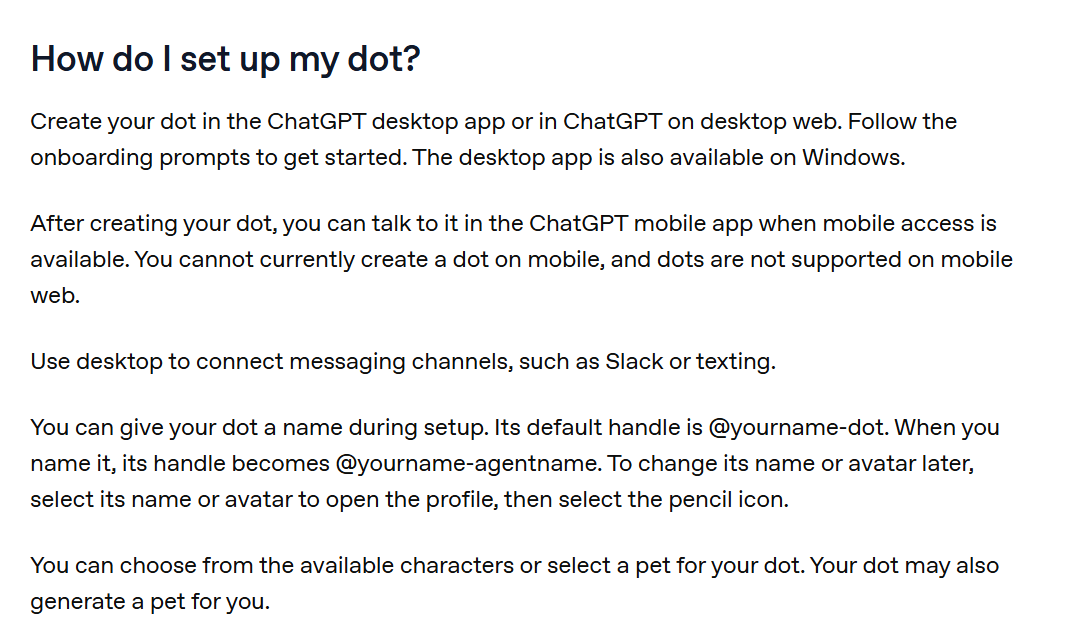
You can only create a dot on a computer: in the ChatGPT desktop app (there's one for Windows) or in ChatGPT in a desktop browser.
- 1. Go to chatgpt.com/dots. That's where the Create your dot button on OpenAI's page leads.
- 2. Follow the onboarding prompts.
- 3. Give your dot a name. Its handle becomes @yourname-<the name you pick>, and you can pick a character or a pet for it.
- 4. Connect the apps it should use. For this guide, connect your calendar and your email.
- 5. Let it introduce itself.
Check it worked: It worked if your dot sends you its first message and introduces itself.
NoteTrying on your phone? Creating a dot doesn't work on mobile, and mobile web isn't supported. Once it exists, you can message it from the ChatGPT phone app. You can add or remove apps later under Plugins in ChatGPT's settings.
Decide what it may do alone
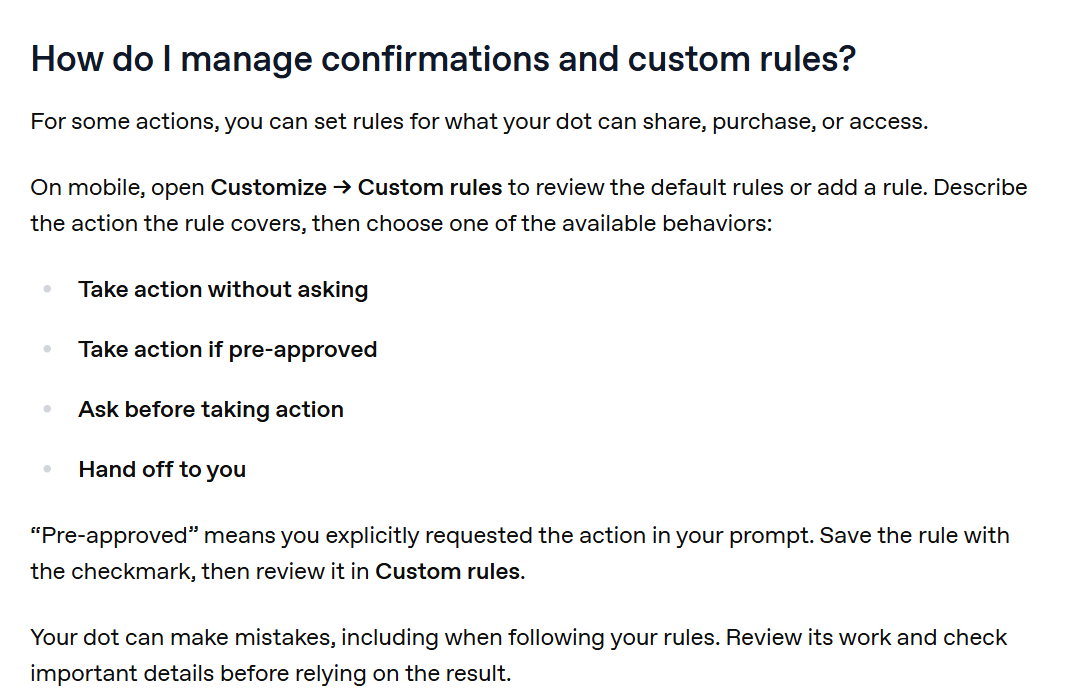
Custom rules tell your dot what it can do by itself and what has to wait for you. Each rule gets one of four settings:
- Take action without asking
- Take action if pre-approved
- Ask before taking action
- Hand off to you
- 1. In the ChatGPT phone app, open your dot's profile, then Customize, then Custom rules.
- 2. Add a rule and describe the action in plain words. Use the three below.
- 3. Pick Ask before taking action and save with the checkmark.
Check it worked: It worked if all three rules show up in your Custom rules list.
NoteSome limits are built in: changing a password or moving money always comes back to you, and deleting data for good or installing software from an unrecognized source needs your confirmation. Can't find the menu? Ask your dot to write the rules.
Sending an email or message to anyone outside my company
Paying for, buying or ordering anything
Deleting or changing files, invoices or calendar eventsGive it a morning business brief
Now give your dot a job that repeats. Describe it the way you'd brief a new assistant.
- 1. Open the conversation with your dot.
- 2. Paste the task below. Change the time if 8:00 doesn't suit you.
- 3. Answer any questions it asks.
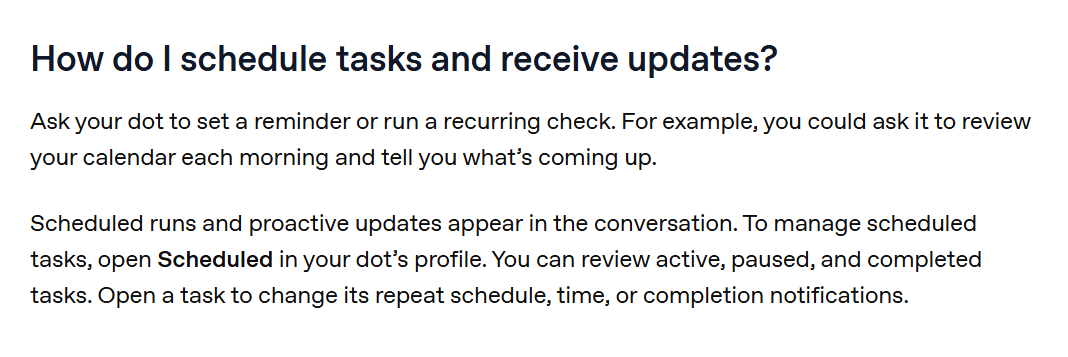
Check it worked: It worked if the task appears under Scheduled in your dot's profile.
NoteEach run shows up in your conversation with the dot. To change the time or how often it repeats, open Scheduled in the profile and open the task.
Every weekday at 8:00, go through my calendar and my inbox and send me a short brief here: today's meetings and what I need for each one, emails waiting for my reply, and any invoice I sent that looks unpaid or that I forgot to send. Draft replies and reminders for me, but don't send anything until I say yes.Check its work, pause it anytime
For the first few days, look at what your dot did before you trust it with more.
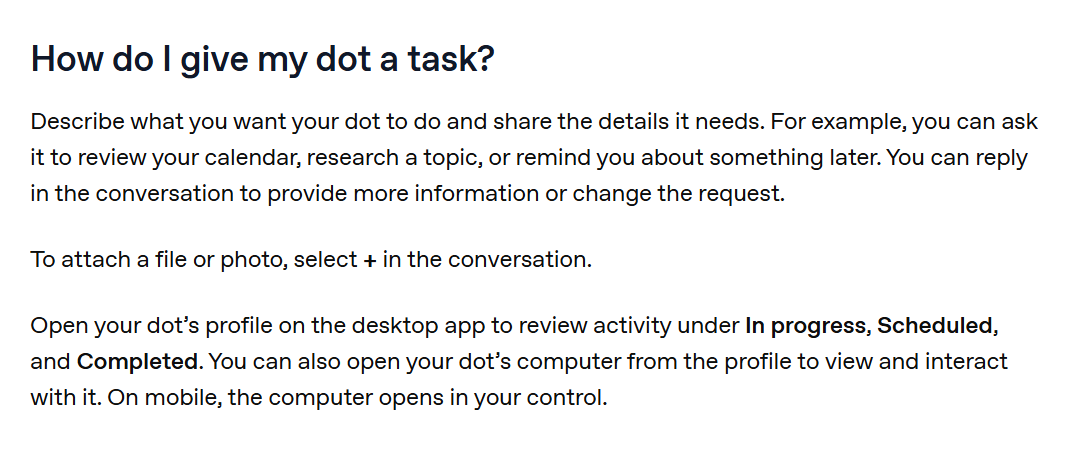
- 1. Open your dot's profile on the desktop app. In progress, Scheduled and Completed list its work.
- 2. Activity View in the desktop app shows each task, its status and the steps it took.
- 3. To stop it for a while, open the ••• menu in its profile and select Pause. Select Paused • Tap to resume to start it again.
Check it worked: It worked if tomorrow's brief arrives in your chat and every draft waits for your yes.
For whole companies, OpenAI is starting pilots of specialist dots, each given a defined job inside the business.
NoteDots can still make mistakes, so read important work before you rely on it. Reset, in the same ••• menu, deletes the dot with its conversations, memories and scheduled tasks. Use Pause if you only want a break.